Customize Your QR Code
Choose a design, decide what it opens and pick a size and file type for where it goes. Each example below opens the Builder with that style selected.
Choose a Style
Each design comes from a CMU icon, a campus landmark or a vintage logo. See what inspired each one.
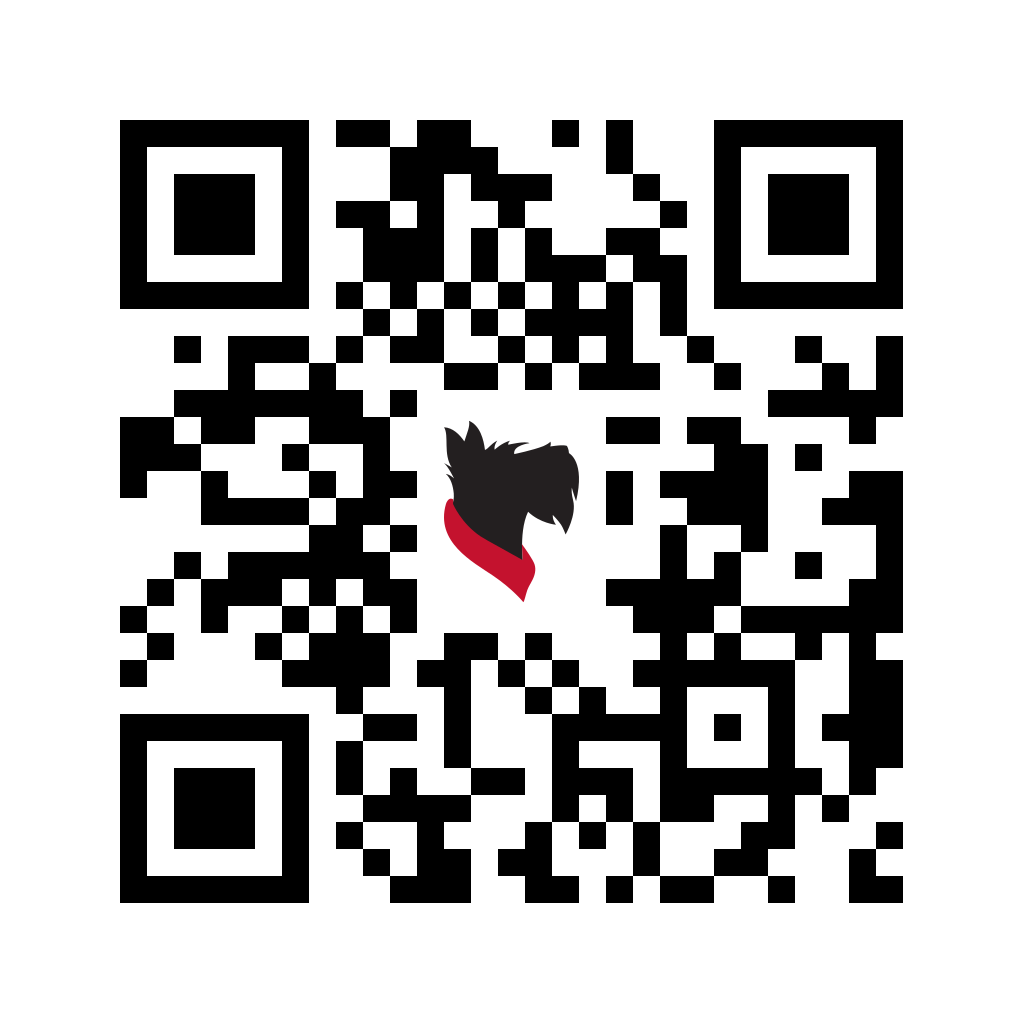
Scotty Portraits
Basic Scotty
A Scotty portrait inside a QR code made of black squares, with room for the artwork in the center.
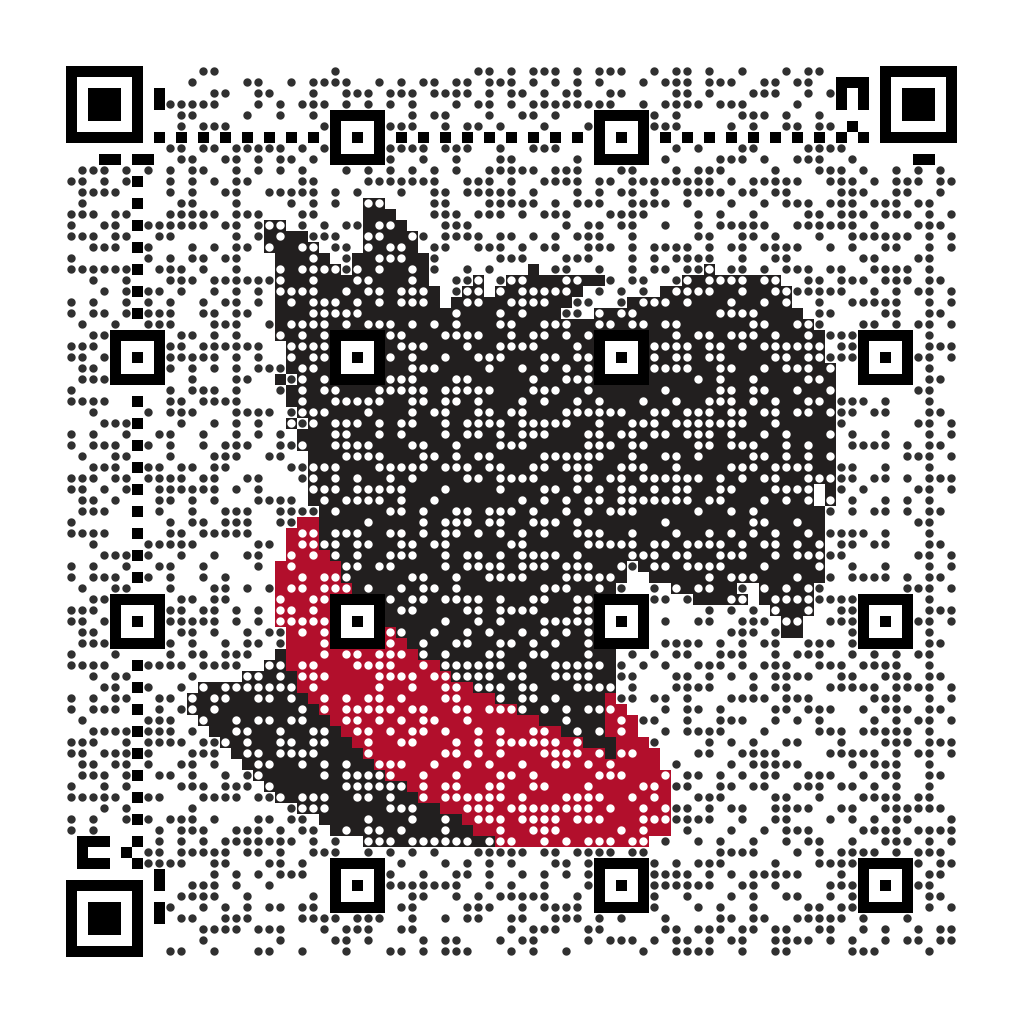
Scotty Portraits
Mosaic Scotty
Scotty and his red scarf formed from the QR code's dots. Use a larger image to keep the portrait clear.
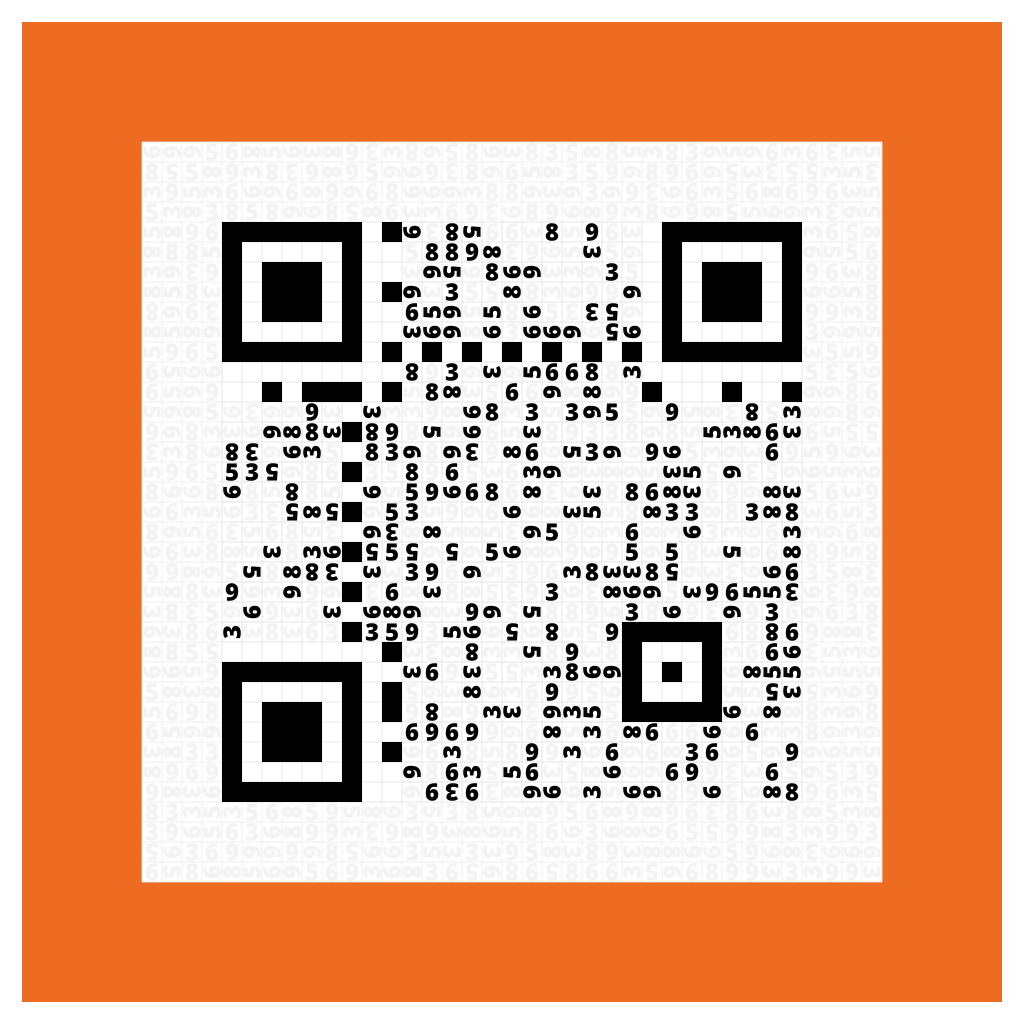
Campus Landmarks
Kraus Campo
Numbered tiles inspired by the campus garden, with optional text incorporated into the orange frame.
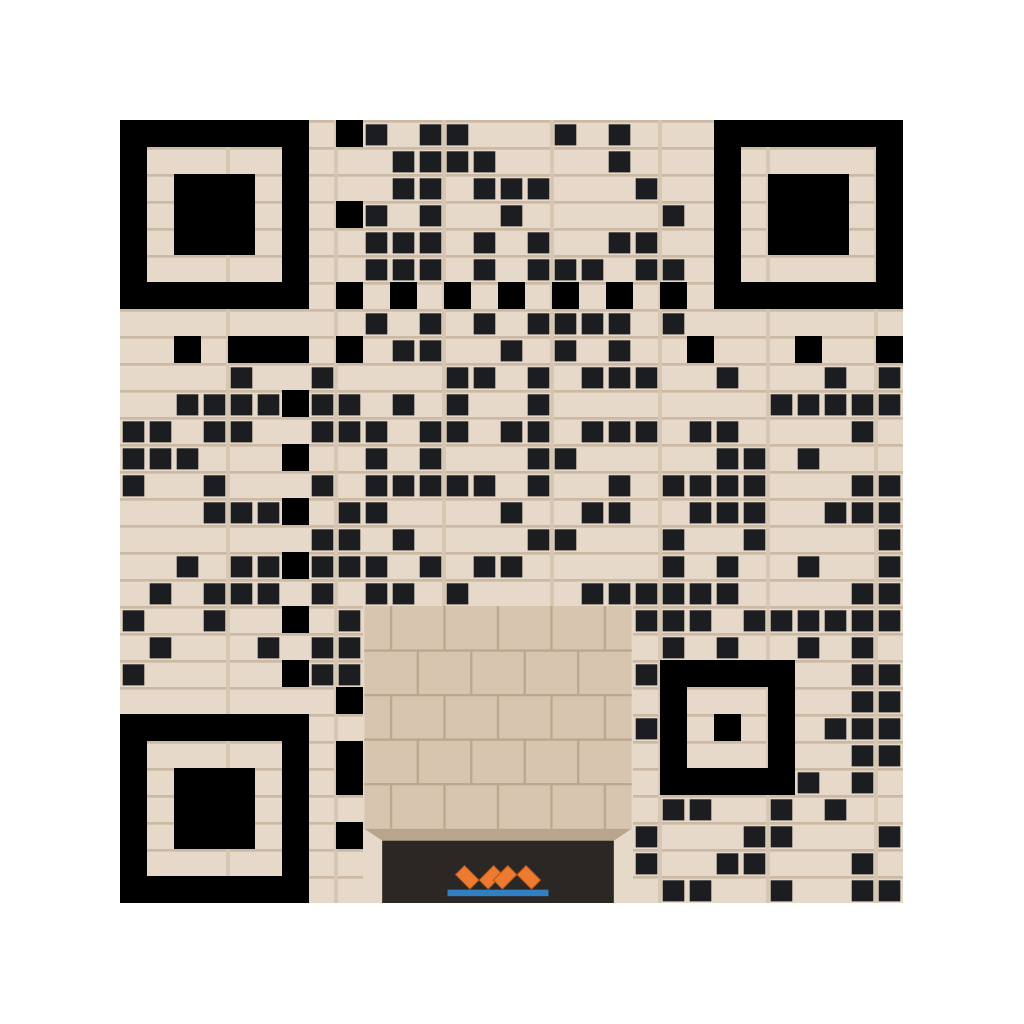
Campus Landmarks
Wean Hall
Wean Hall's brutalist facade, turtle-head entrance and its former orange sculpture.
Carnegie Mellon Marks
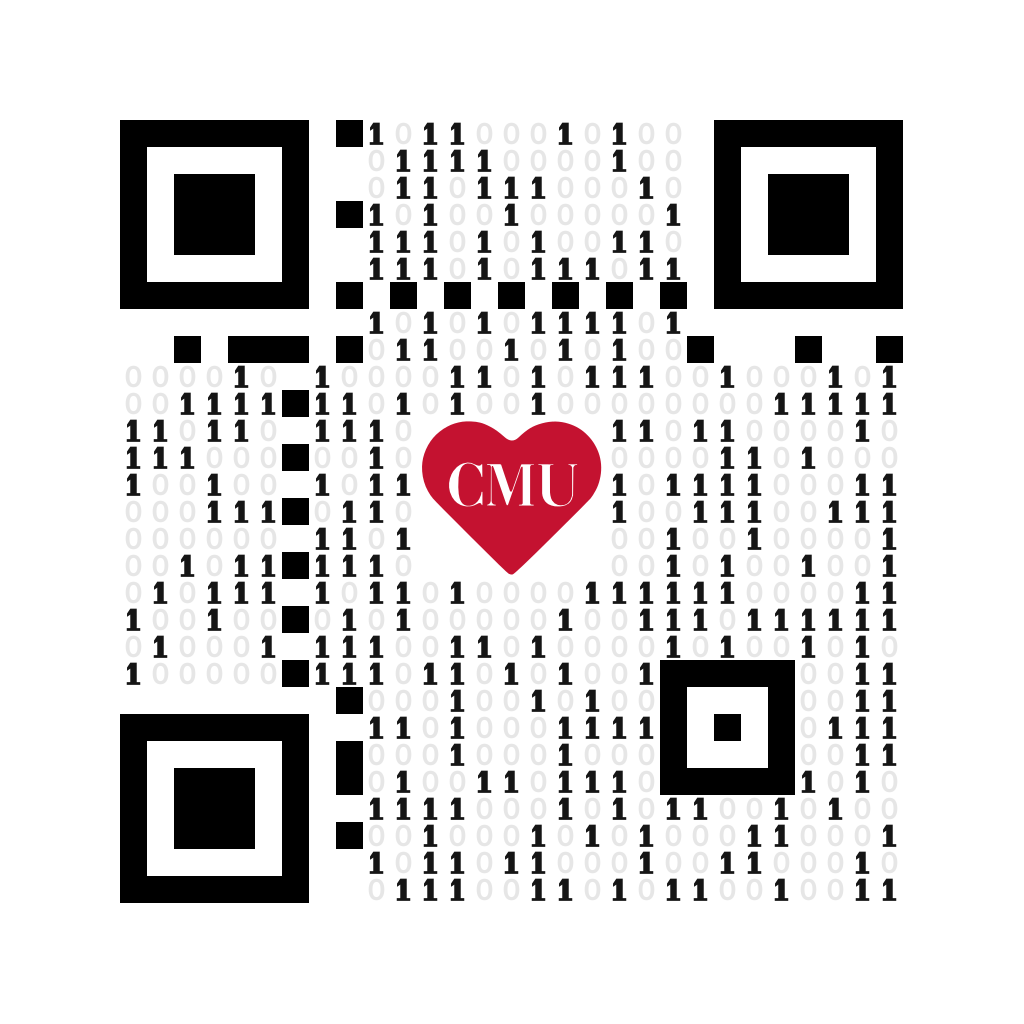
Binary Heart
Ones and zeros surrounding the red CMU heart. A detailed design for larger exports.
Carnegie Mellon Marks
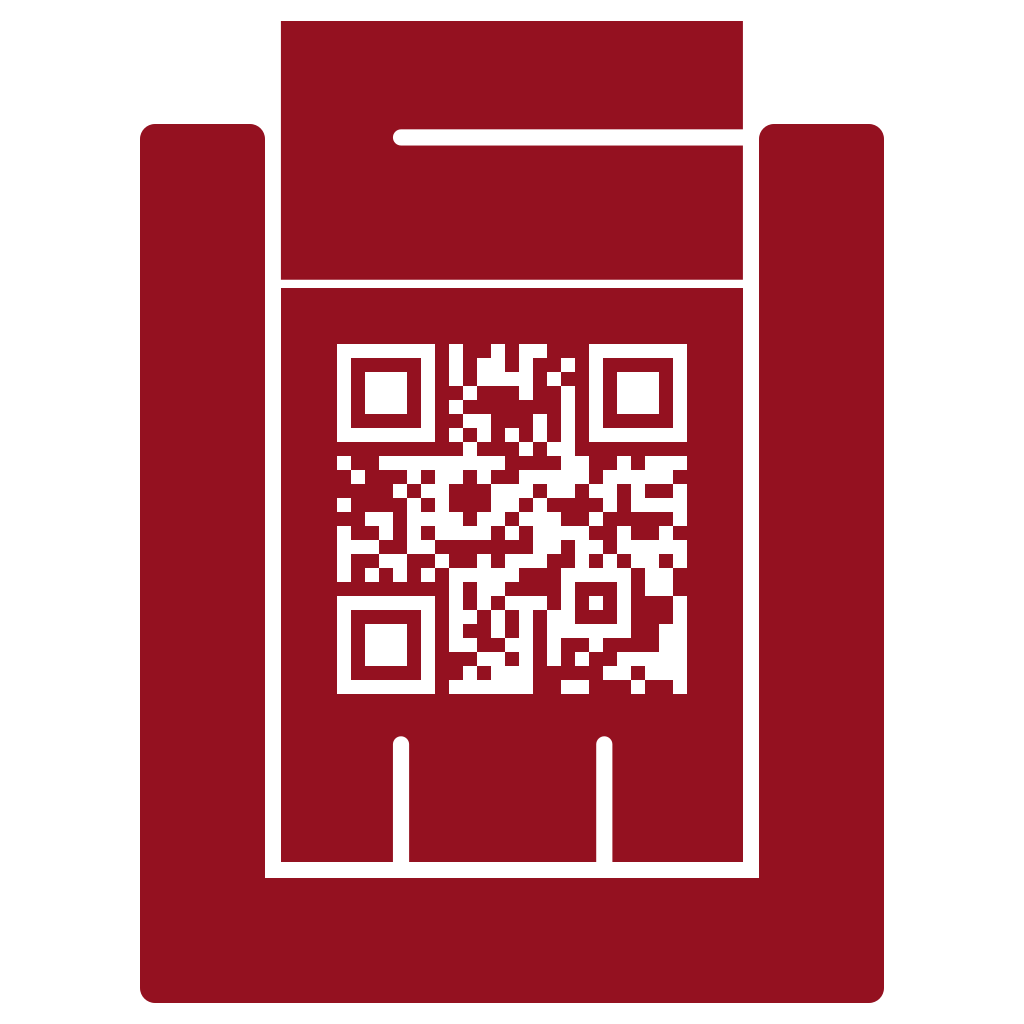
Block Monogram
The historic Carnegie-Mellon block monogram, with the QR code replacing the M.
Carnegie Mellon Marks
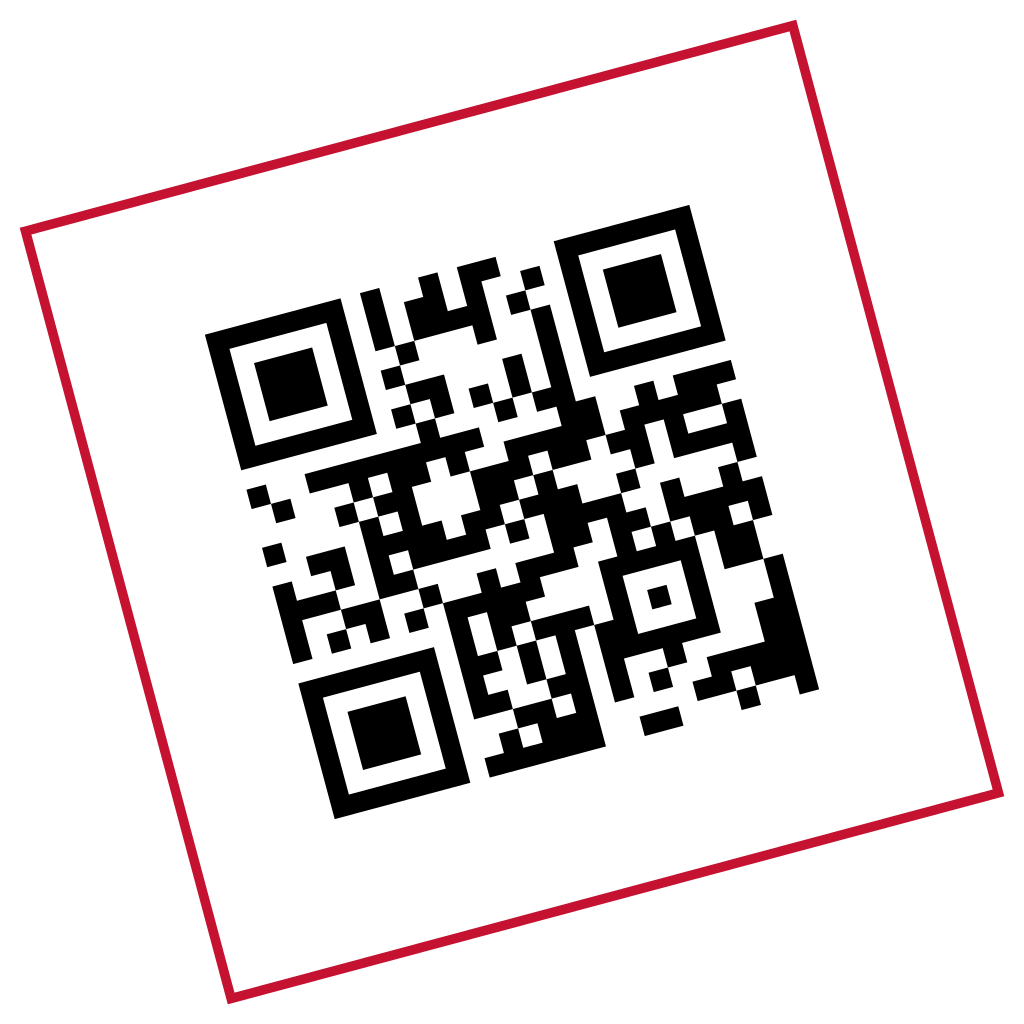
Tilted Square
A QR code turned inside a red square outline, echoing the university's tilted-square mark.
Simple and Classic
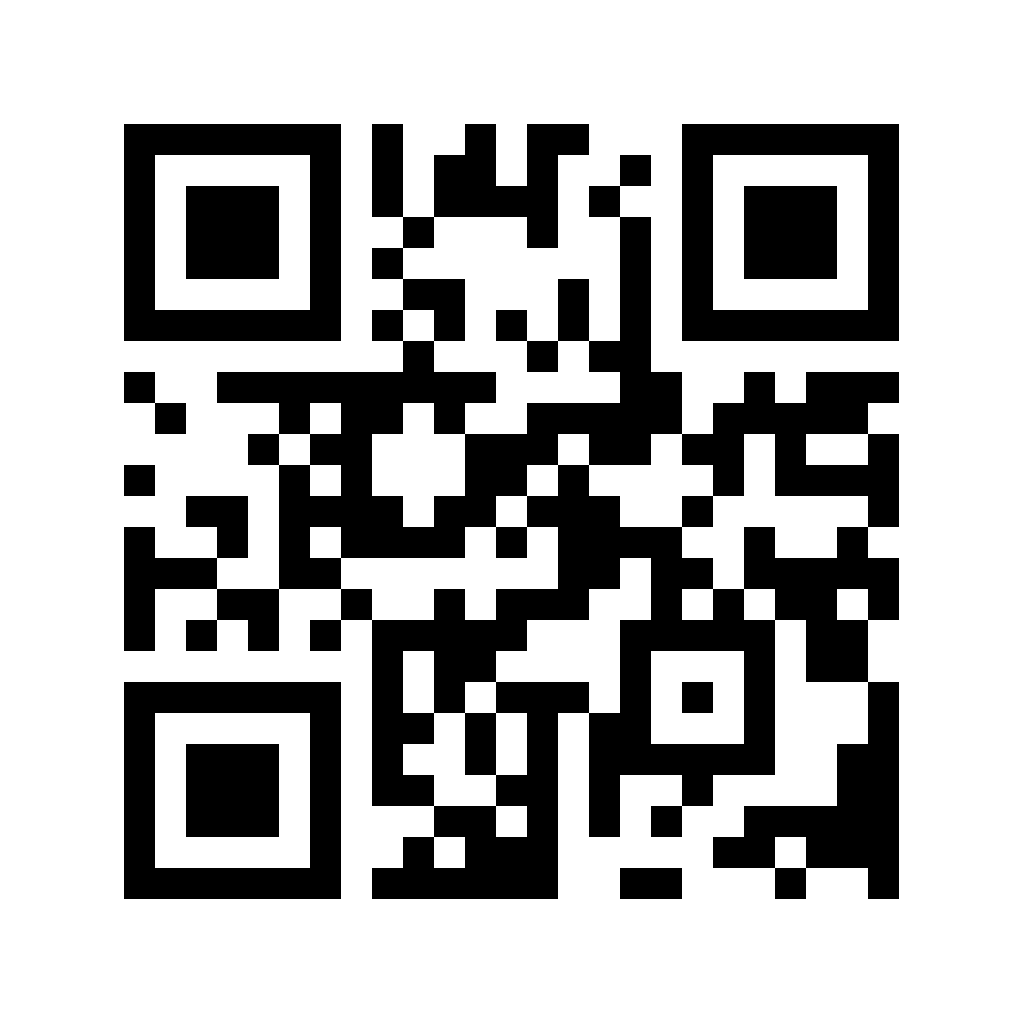
Basic Black
Black squares on white, without added artwork. Good for small spaces.
Simple and Classic
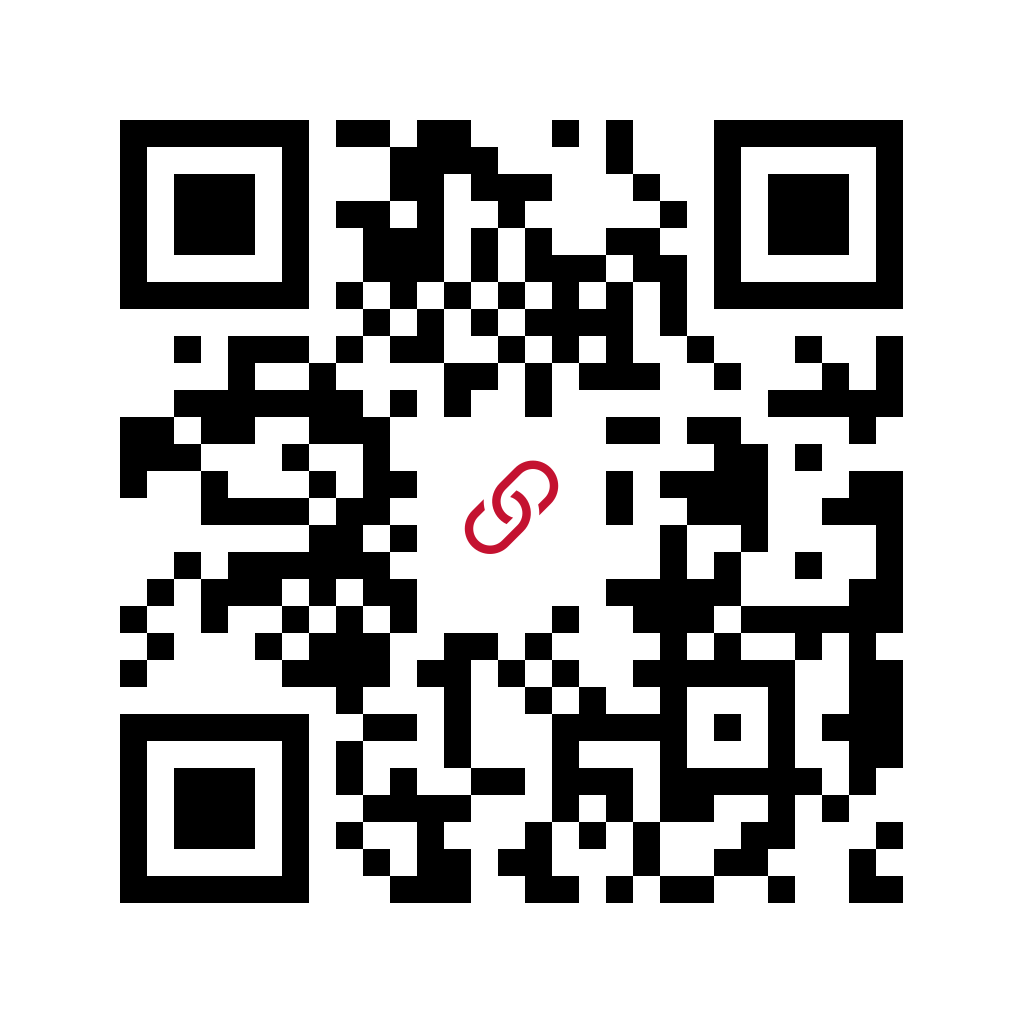
Center Icon
A black QR code with a red center icon. Choose an icon in the Builder to match the content.
Or Choose an Unlisted Style
These styles are made for one group. They're unlisted, not private: anyone with a collection's link can use them.
merichar
Each design comes from whatever was on the desk that day. Any theme you find is a coincidence.
Anyone with this link can use these styles:
https://qrnegie.andrew.cmu.edu/styles.html?collection=merichar#unlisted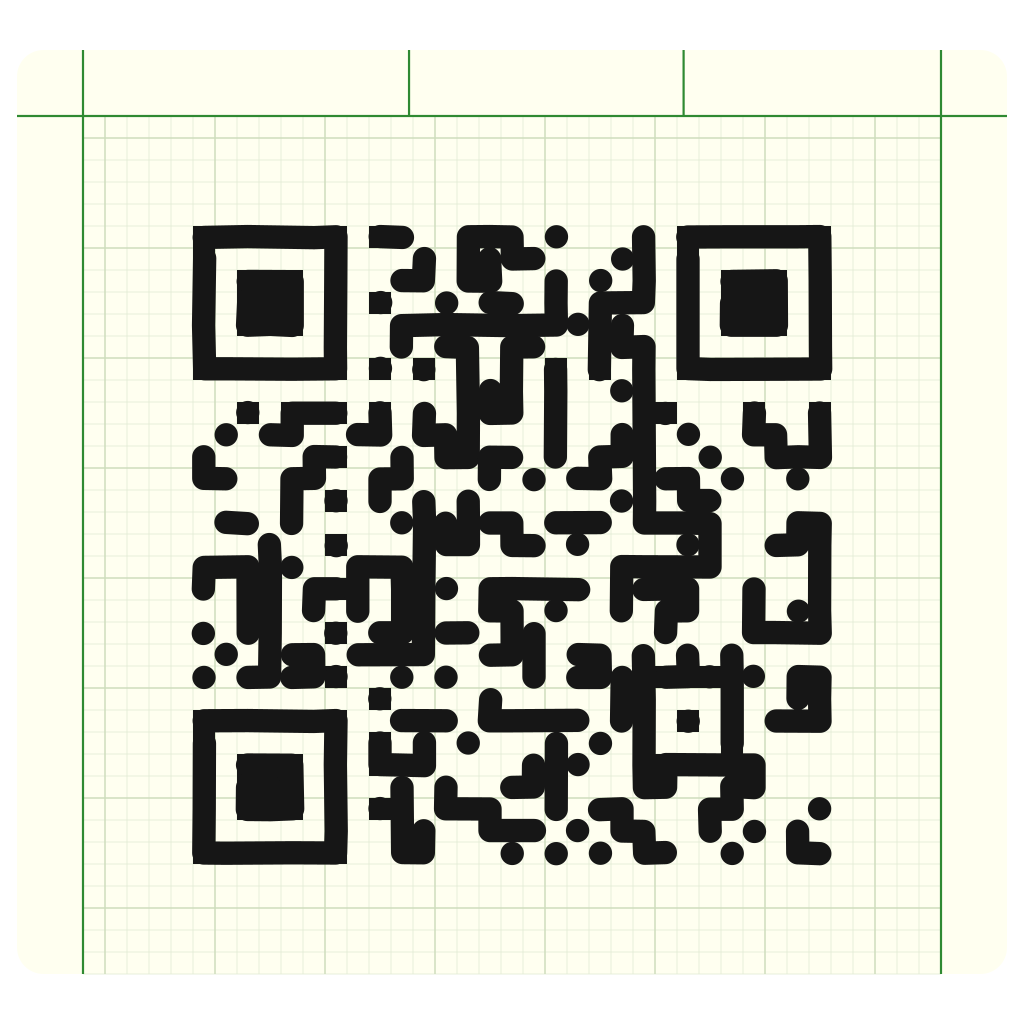
Engineering Paper
Cream engineering paper with squares colored in with a fat black marker, a stroke at a time, that happen to make a QR code.
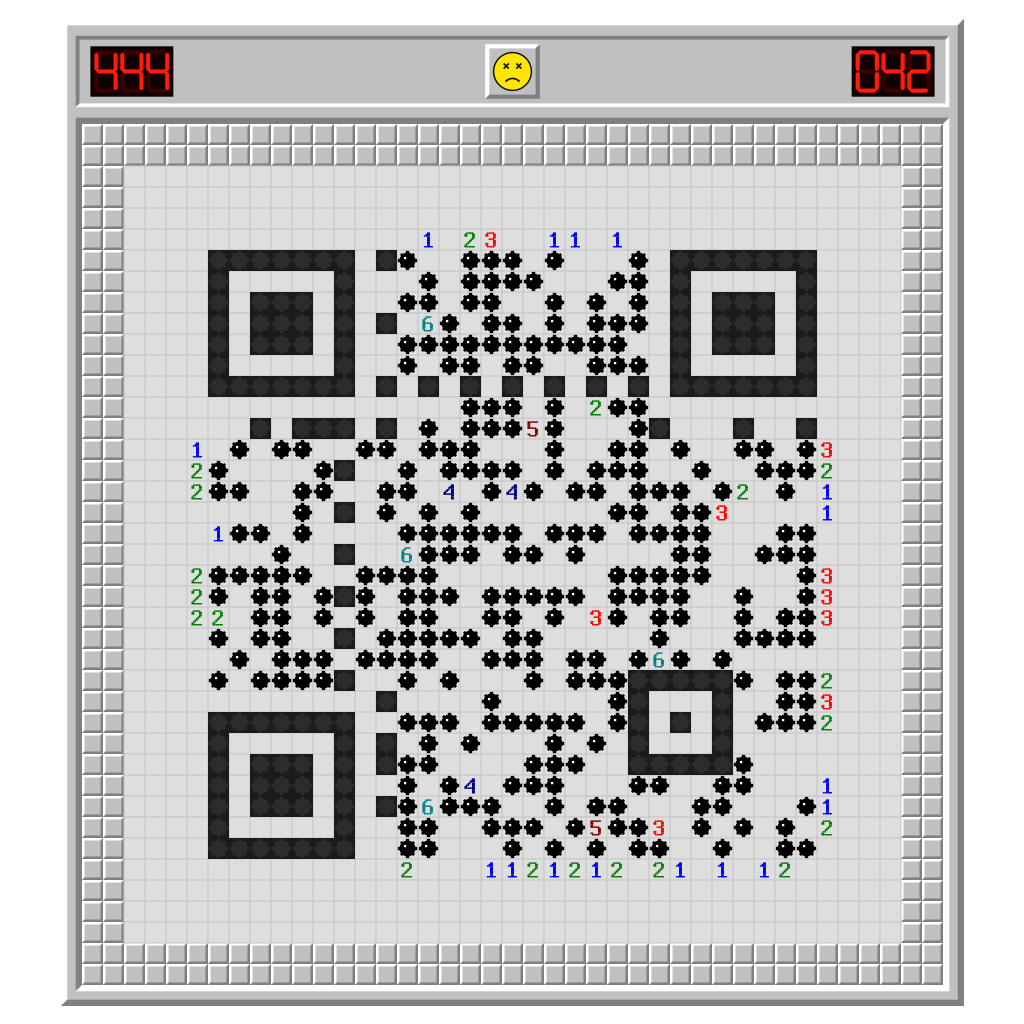
Minefield
A tile board from the classic desktop game: the code's dark squares are mines on revealed tiles, with numbered tiles, a mine counter and the face button.
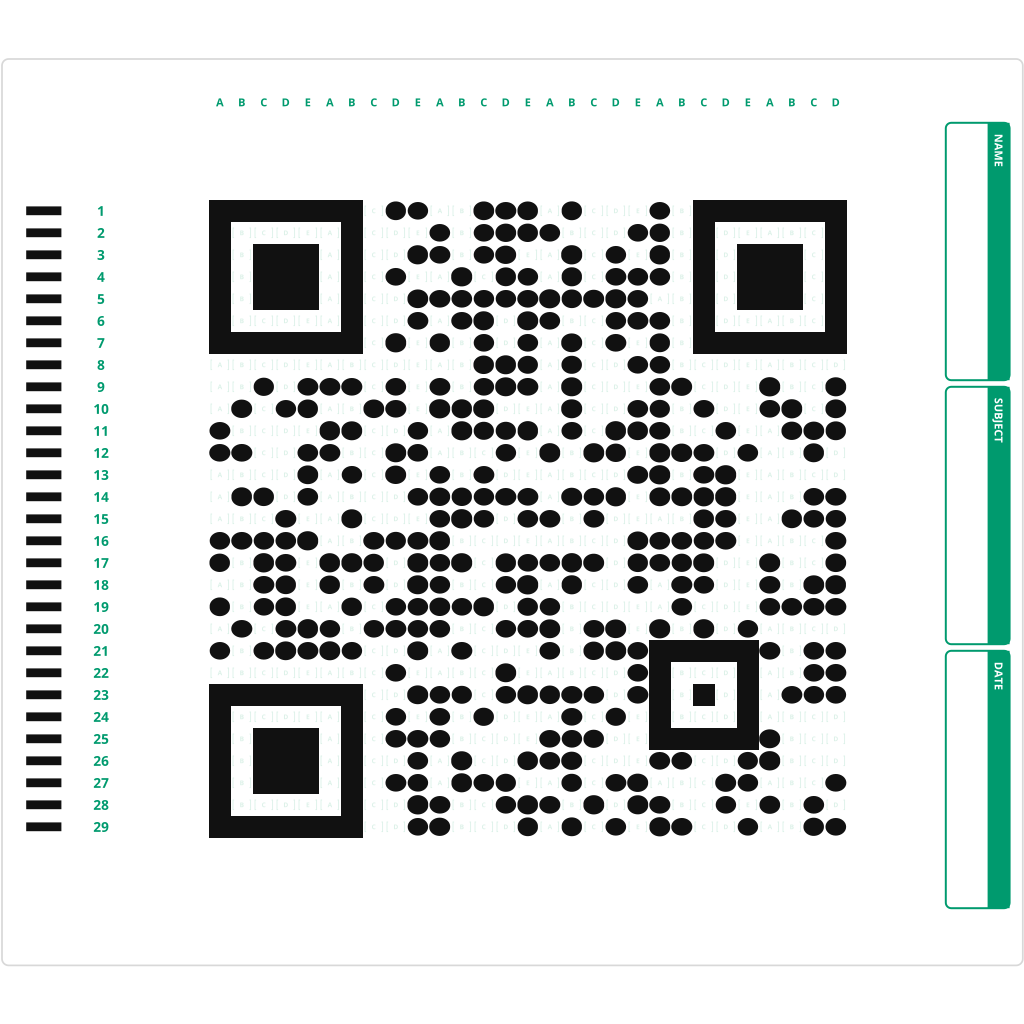
Scantron
A machine-scored quiz strip with green bracketed bubbles and timing marks down the edge: the code is made of answers, each dark square a bubble filled in.
mjs
Each design comes from the School of Computer Science dragon or early computing.
Anyone with this link can use these styles:
https://qrnegie.andrew.cmu.edu/styles.html?collection=mjs#unlisted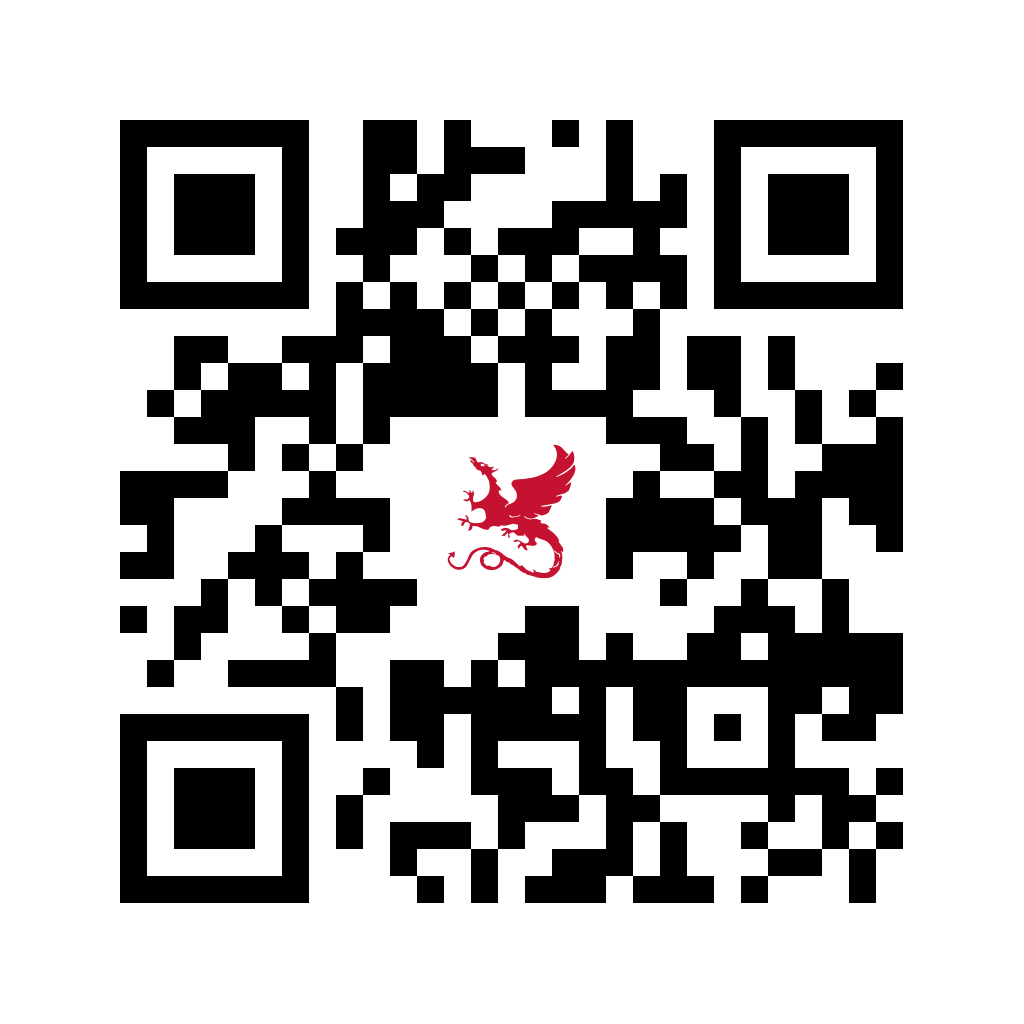
Basic Dragon
The School of Computer Science dragon inside a QR code made of black squares, with room for the artwork in the center.
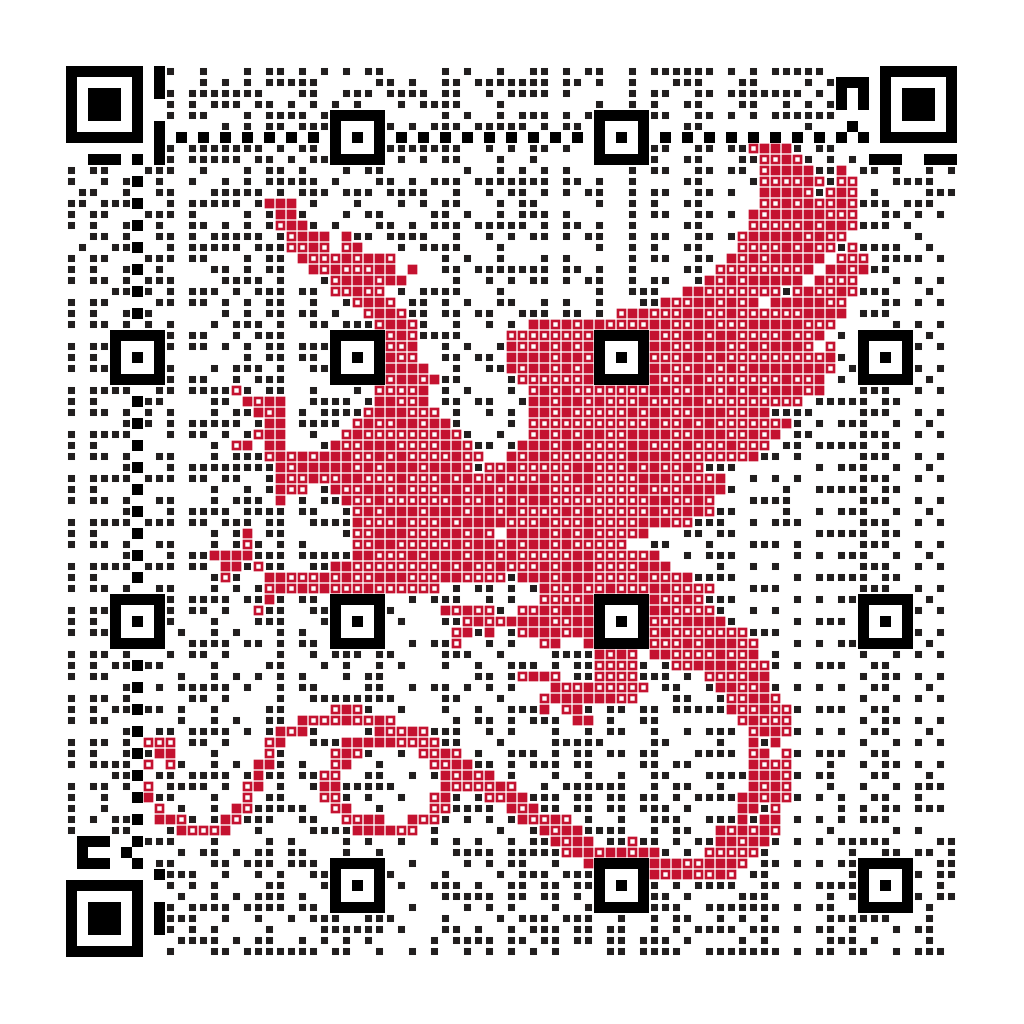
Mosaic Dragon
The School of Computer Science dragon as a mosaic: red squares form the dragon, and a white center in a square carries the code's light dots.
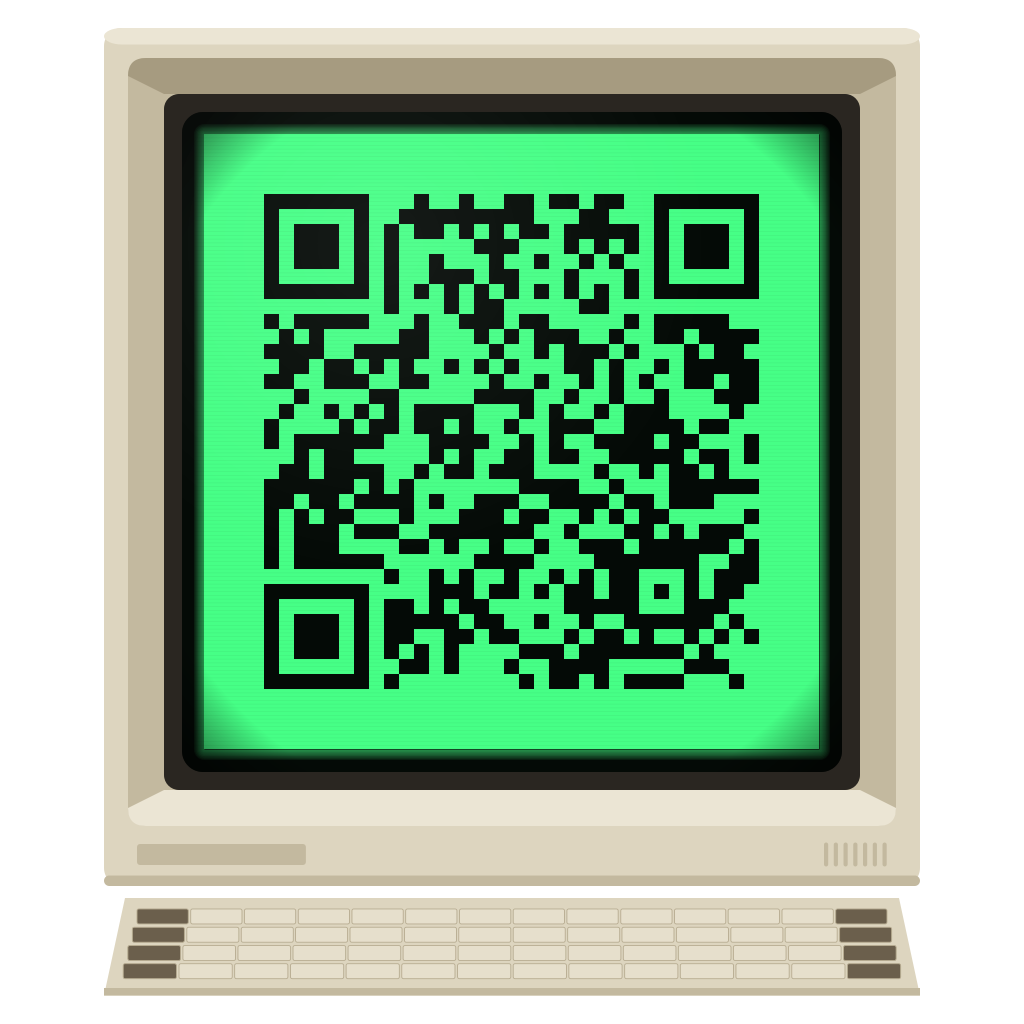
Terminal
Check your baud rate, mind your escape sequences and leave the DIP switches alone. Text above and below prints as lines of output.
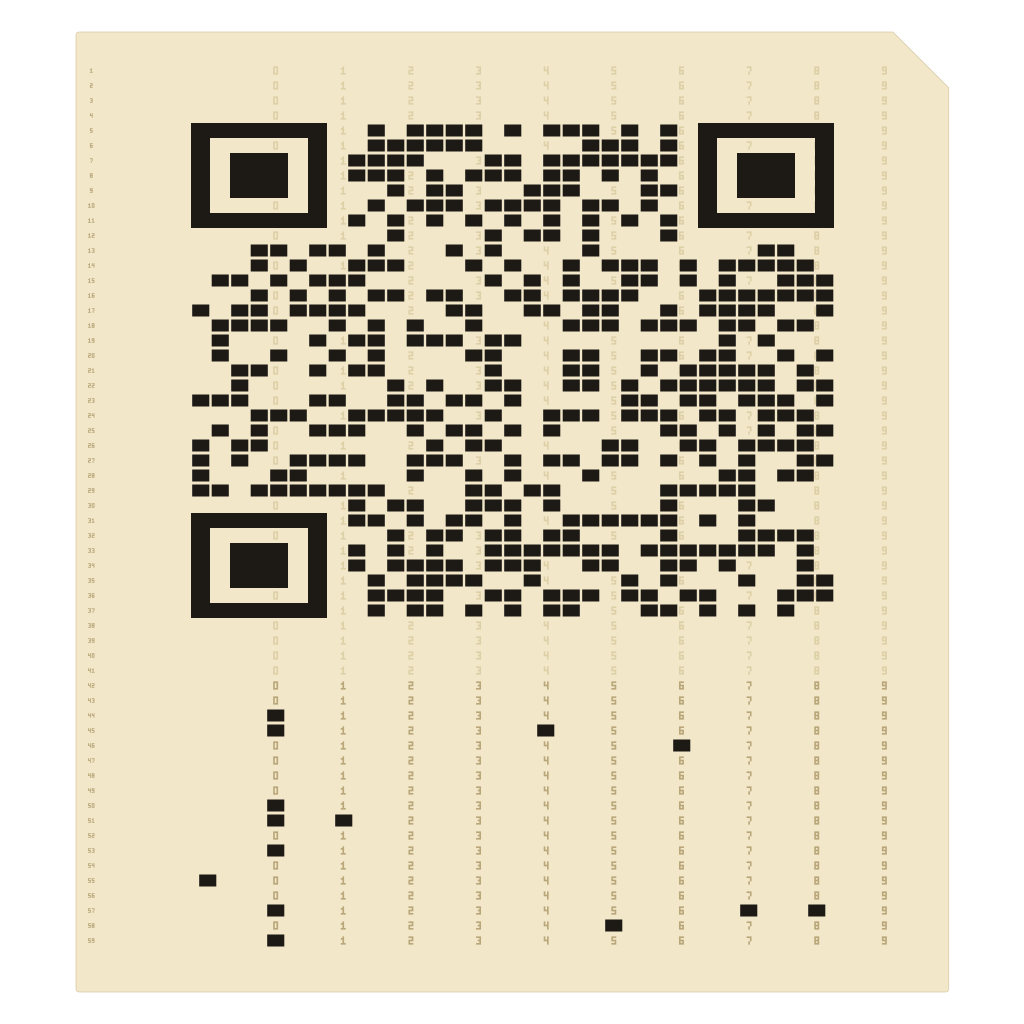
Punch Card
Eighty columns, one URL and a quiet disregard for Hollerith encoding. Do not fold, spindle or mutilate.
scc
Each design comes from game night in the committee room.
Anyone with this link can use these styles:
https://qrnegie.andrew.cmu.edu/styles.html?collection=scc#unlisted
Basic Carnival
The Spring Carnival tent in red, in the middle of a QR code made of black squares.
Go Board
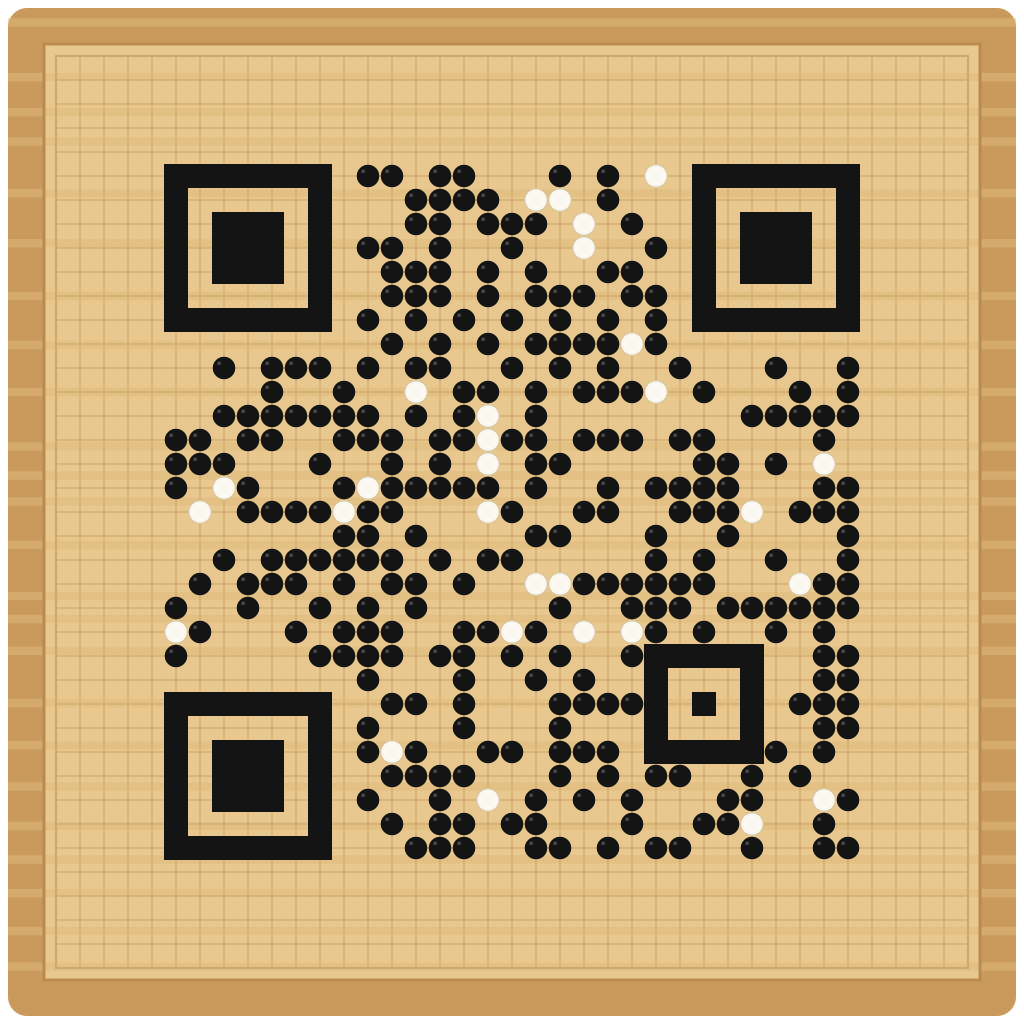
A wooden game board with a line through every square: the code's dark squares are black stones on the crossings, with a few white stones among them.

Sea Battle
A naval guessing game's plotting grid, with numbers and letters along the edges: the code's dark squares are army-green warships, some sunk with black pegs in their holes, and black hit pegs, with a few miss rings.
Tic-Tac-Toe
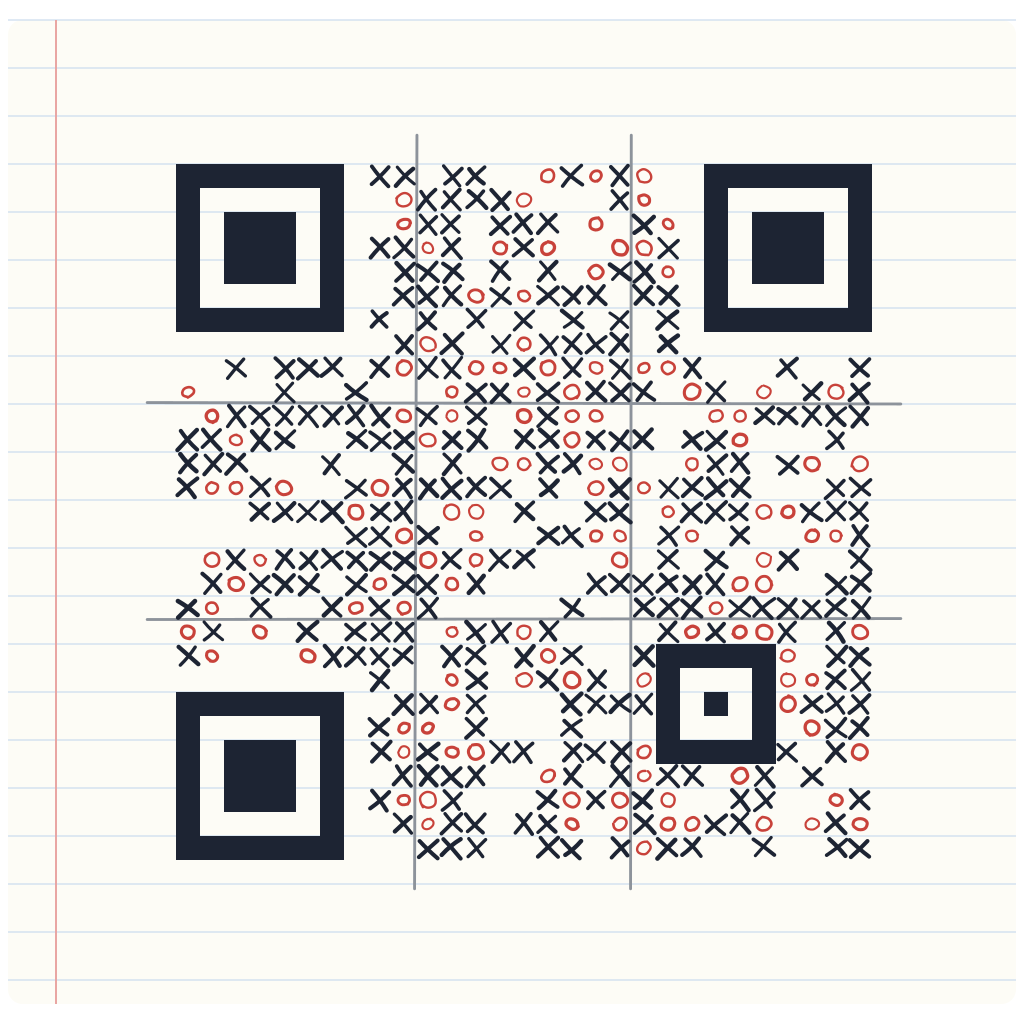
A game played out on notebook paper, with the big # drawn in pencil: the code's dark squares are X's in marker, with a few red O's among them.
thetartan
Designs using The Tartan newspaper's emblem.
Anyone with this link can use these styles:
https://qrnegie.andrew.cmu.edu/styles.html?collection=thetartan#unlisted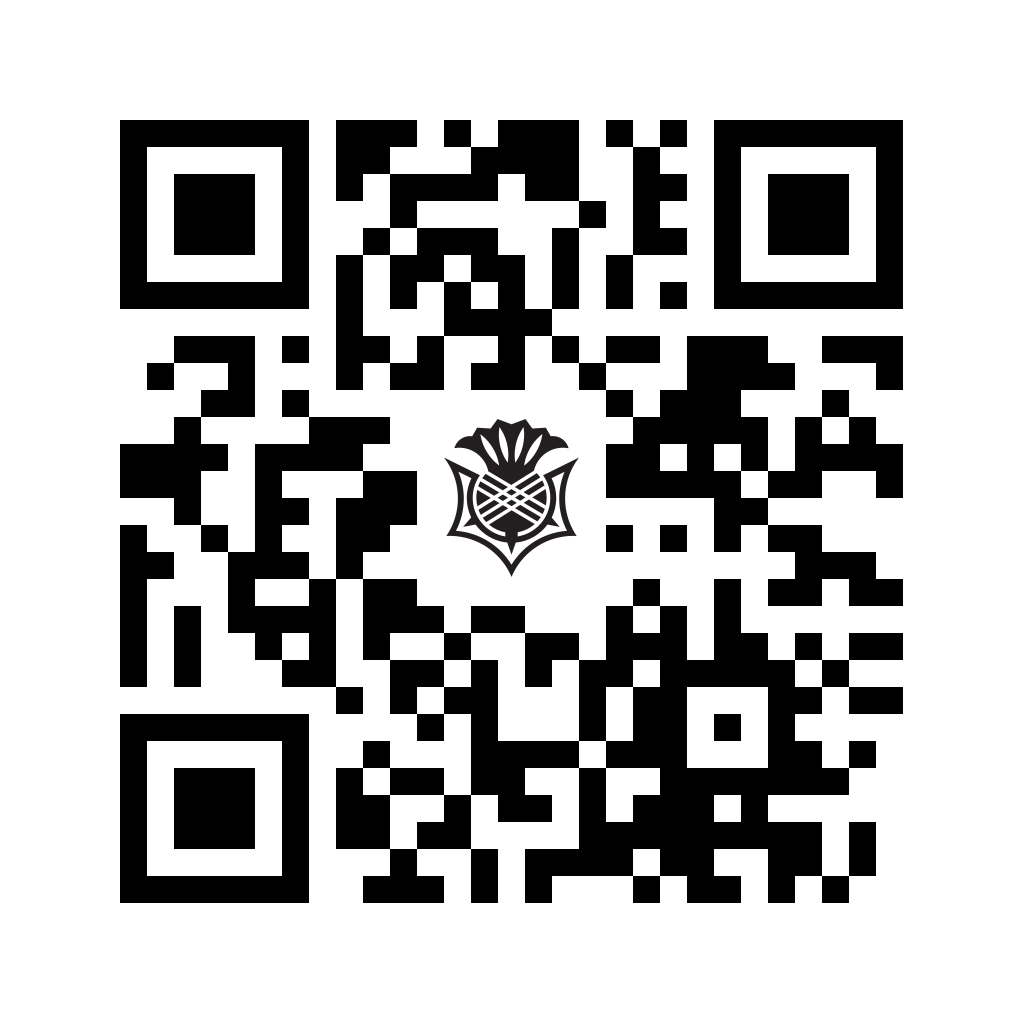
Basic Tartan
The Tartan newspaper's emblem in the center of a QR code made of black squares.

Mosaic Tartan
The Tartan newspaper's emblem formed from black squares, with white centers carrying the QR code's light dots. Use a larger image to keep the emblem clear.
Choose What It Opens
The Builder turns the details you enter into the right kind of QR code. Choose what someone should be able to do after scanning it.
| Content Type | What to Expect | Try It |
|---|---|---|
| Link or Text | Open a link or show the text you supply. | Add a Link |
| Contact Card | Offer to save contact details. | Add a Contact |
| Event | Offer to add an event to a calendar. | Add an Event |
| Start an email with the address, subject and message filled in. | Start an Email | |
| Phone Call | Offer to call the number you enter. | Add a Number |
| Map Location | Open a location in Google Maps, Apple Maps or OpenStreetMap, whichever you pick. | Choose a Place |
| Wi-Fi Network | Share a CMU network or its connection instructions. See the note below. | Choose a Network |
What happens after a scan depends on the phone and its apps. Contact cards and events hold more information than a short link, so their codes are denser. Give them a larger size.
Note
CMU-SECURE and eduroam codes open Computing Services' connection instructions. They don't join the network. CMU-DEVICE is for registered devices without a browser. CMU-GUEST requires an access code from faculty or staff.
Add Text or an Icon
Add a line of text above or below the QR code to tell people what it opens. Each line takes up to 40 characters, including letters, numbers, spaces and common punctuation. The Builder previews the result.
Text usually makes the image taller. Kraus Campo puts it inside its orange frame instead. Keep the exported proportions when placing the image.
With Center Icon, choose a symbol that suggests the destination, like a calendar or a Wi-Fi icon. The icon is only a hint. What you enter decides what the code opens.
Choose a Width
Start detailed designs at 1024 pixels. More content produces a denser QR code, and a small export may leave too little room for its dots or artwork. The Builder raises a size that is too small for the content and style.
The width includes the code's margin and any surrounding design. Text above or below can add height. A bigger file doesn't mean it scans from farther away, so check the code at the size and distance where people will use it.
Choose a File Type
| Format | Use It For |
|---|---|
| SVG | Print layouts and web pages. Vector shapes stay sharp when scaled. |
| PNG | Slides, email and documents that don't take SVG. Export enough pixels for the size you'll use. |
Check Before You Share
- Keep the image intact. Preserve its proportions and the space around the QR code. Don't stretch it or crop away its margin.
- Give dense QR codes more room. Use a shorter link or a larger image.
- Test the finished layout. Scan the sign, slide or label at its intended size and distance.
- Check what opens. Confirm the link opens or the contact, event or network details are correct.